Ebook
HubSpotHubSpot Workflow Troubleshooting Playbook
A practical diagnostic process for finding out why a record didn't enter a HubSpot workflow, why it didn't complete as expected, or why the result was wrong.






Book a call with MarCloud's Founder to discuss:
Integrating HubSpot and Salesforce
Auditing CRM data and segmenting data
Underperforming workflows and automations
Reducing license costs and inefficiencies
Revenue attribution modelling and proving ROI
AI readiness, Agent POC's, and Claude integration
Within 30 minutes, you'll know the best next step for your business.
Our HubSpot workflow isn’t working.
This is the sentence I often hear from marketers weighed down by HubSpot technical issues and wishing they could get on with the work they’d rather be doing. Lucky for them (and you!) MarCloud has a proven diagnostic process for figuring out what went wrong with a workflow.
Let’s say a workflow should have enrolled a lead after they completed a form, but nothing happened. Or Sales should have received a notification, but it never arrived. Or a lifecycle stage should have changed, yet the contact still sits in the same place. Or perhaps HubSpot shows that the workflow completed successfully, but the record now contains the wrong information.
These might feel like minor technical problems, but a broken HubSpot workflow directly impacts reporting and revenue generation. Workflows lay the foundations for proper segmentation, tracking, engagement, and, ultimately, campaign attribution modelling. Without reliable campaign attribution, it’s impossible to prove accurate marketing ROI (and secure future budget).
No matter the issue, we approach malfunctioning HubSpot workflows with the same approach.
Before I share it with you, a quick introduction.
MarCloud consultants work with HubSpot portals for mid-market and enterprise businesses around the world, including setups where workflows control campaign follow-up, data management, lead qualification, internal notifications, Salesforce handover, and wider revenue generation. Our hands-on experience has directly informed the process in this playbook.
So, onto the good stuff.
The starting point for any workflow issue is simple: choose one affected record and follow the evidence.
Why?
Trying to diagnose an entire workflow based on hundreds or thousands of records will create a lot of noise and overwhelm. On the other hand, focusing on a single record gives you a specific sequence of events to investigate, so you can establish what HubSpot knew at each point, what it did with that information, and where the outcome was different from what you expected.
This free playbook walks you through our expert workflow troubleshooting process.
HubSpot workflow troubleshooting involves taking an affected record and tracing what happened from the moment it should have met the workflow criteria.
First, establish whether the record enrolled. If it didn't, investigate the enrolment triggers, available data, previous enrolment, and exclusions. If it did enrol, review its action history, branches, delays, and associated records.
If the workflow completed but produced the wrong result, investigate the property history, other workflows, imports, and integrations that may have changed the data afterwards.
I can’t know your unique use case and challenge. But I can tell you that the same troubleshooting process works across different types of HubSpot workflows, whether you have a contact-based nurture workflow, a deal workflow updating pipeline data, a company workflow managing properties, an internal notification workflow, or an automation passing information to another system, like Salesforce.
HubSpot workflows use filter-based and event-based enrolment triggers, alongside a range of CRM actions, branches, delays, and connected-app actions. The details change from one workflow to another, but the first diagnostic step remains the same
Back to that first statement. When somebody tells us, ‘Our HubSpot workflow isn’t working’, we need to narrow things down. For example:
Did the record fail to enter the workflow?
Did it enter and stop somewhere?
Did it complete every expected action, only for the result to end up wrong later?
These three situations require different checks and investigations.
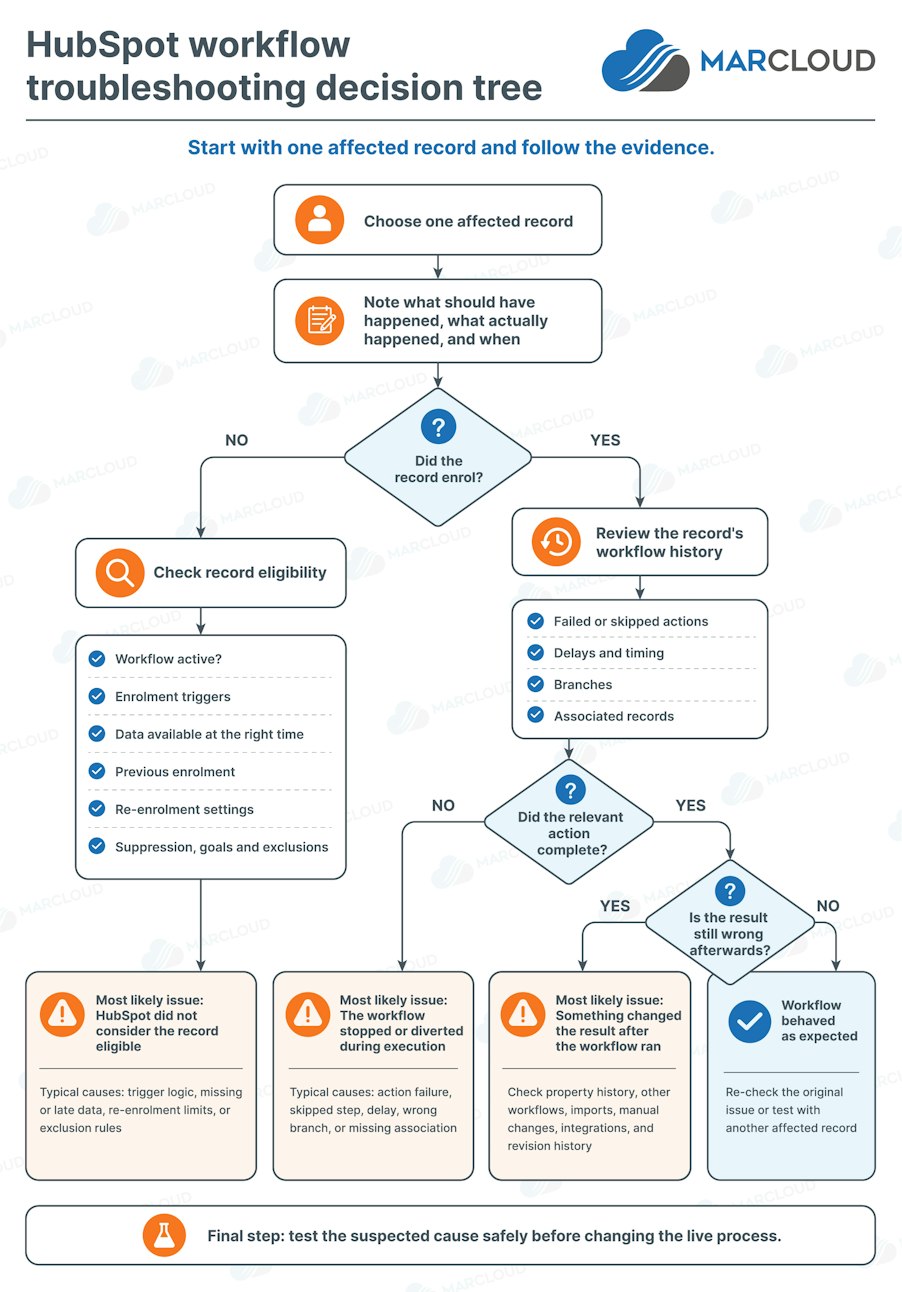
To make things as easy as possible, here’s a diagram showing the exact steps our consultants take when faced with a HubSpot workflow problem, and how this impacts their next decision.
You can basically use this flowchart to do your own diagnostic! But it’s top-line. The real meat is in the full playbook further down. Be sure to complete the form to access the full instructions.
A brief summary of this diagram is:
Start with one affected record.
↓
Note what should have happened, what actually happened, and when.
↓
NO
Check:
Whether the workflow was active.
Enrolment triggers.
The data available when HubSpot evaluated the record.
Previous enrolment.
Re-enrolment settings.
Suppression, goals, and other exclusions.
↓
Find out why HubSpot did not consider the record eligible.
YES
Check:
The record's workflow enrolment history.
Action logs for failed or skipped actions.
Delays.
Branches.
Associated records.
↓
NO
Follow the action history until you find the point where the actual path differs from the expected one.
YES, but the result is wrong
Check:
Property history.
Other workflows.
Imports.
Manual changes.
Integrations.
Workflow revision history.
↓
Test the suspected cause safely before changing the live process.
HubSpot workflow history shows the path the record followed along with successful and failed actions, so this is one place to find answers to some of these questions.
The full playbook takes you through MarCloud's investigation process in detail, including:
What to inspect at each stage.
Where to look for the relevant evidence in HubSpot.
What different results tell you.
Common workflow edge cases.
Examples of problems that look similar but have different causes.
How to test a suspected fix safely.
How to prevent recurring workflow issues.
When it makes sense to bring in a HubSpot technical specialist.
Get the full troubleshooting playbook to resolve your workflow issues right away.
When you uncover a HubSpot workflow issue, it’s tempting to open the workflow and start changing things.
Try to resist that temptation for a few minutes!
The original configuration, record history, and timing contain useful evidence about what went wrong. If you start editing triggers, re-enrolling records, and changing property values before you capture that evidence, you can make the investigation harder.
Start by documenting one example.
|
This doesn’t need to turn into a lengthy incident-style report. The aim is simply to stop the investigation from becoming a series of vague recollections and work with hard evidence. You should end up with something like:
“Emma changed the enrolment trigger at 14:20 on Thursday, and the first affected contact submitted the form at 15:05.”
Before you go any further, work out the scale of the workflow issue.
If one record has a problem while hundreds of similar records worked correctly, look closely at that record's data, history, and associations.
If a recognisable group of records has the same problem, look for something they share, such as source, property value, region, object association, or previous workflow history.
If every qualifying record has stopped behaving as expected, the workflow configuration itself is the prime suspect.
This is not a hard rule, of course, but it helps you focus the investigation.
Want to save this playbook for later? Download the PDF version.
As mentioned earlier, start with the record itself. You need to describe the expected sequence clearly enough that you can test it.
For example:
“This contact submitted the demo request form at 10:15 on Tuesday. At that point, HubSpot should have enrolled the contact in the MQL handover workflow, updated Lifecycle stage to Marketing Qualified Lead, and sent a notification to the assigned salesperson.”
Now compare your expectation with what actually happened.
Perhaps HubSpot recorded the form submission but never enrolled the contact.
Perhaps the contact enrolled three minutes later.
Perhaps the contact entered the workflow but never reached the lifecycle stage action.
Each answer puts you on a different diagnostic path.
Workflow troubleshooting often comes down to timing and sequencing.
If a contact submitted a form at 10:15 but an integration only populated the property required by the enrolment trigger at 10:18, those three minutes are the issue.
The record may look completely correct when you inspect it at lunchtime, but this doesn’t match up with what HubSpot knew at 10:15.
This is one of the most common mistakes we see when teams investigate HubSpot automation.
Somebody opens the contact, verifies that Industry equals Financial Services, Region equals EMEA, and Lead Type equals Enterprise, then concludes that the workflow should have enrolled the contact.
Maybe it should have, based on those values.
However, did those values exist when HubSpot evaluated the record?
Property history is important here because data changes over time. Forms update fields, integrations sync values, workflows change properties, imports overwrite information, and users make manual edits.
Always separate the current state from the state at the time of the event.
Next, open the workflow and confirm that it could have acted on the record.
For filter-based workflows, HubSpot can enrol existing records when the workflow is switched on, depending on the option selected. But for event-based triggers, such as a previous form submission, it won’t work retrospectively.
This means that if somebody switched an event-based workflow on at midday and the contact met the qualifying condition at 09:00, they wouldn’t enter the workflow because HubSpot doesn’t always enrol retrospectively.
Review the workflow type and timing of the relevant record activity alongside any workflow changes.
Look for any warning that could affect the workflow's behaviour.
HubSpot can flag workflows that need review and provides notifications when it detects issues or unusual changes in enrolment rates, depending on the account's features and settings.
A warning does not automatically explain your affected record, but it gives you another piece of evidence.
If the workflow looks correct now but the problem happened earlier, check whether somebody changed it.
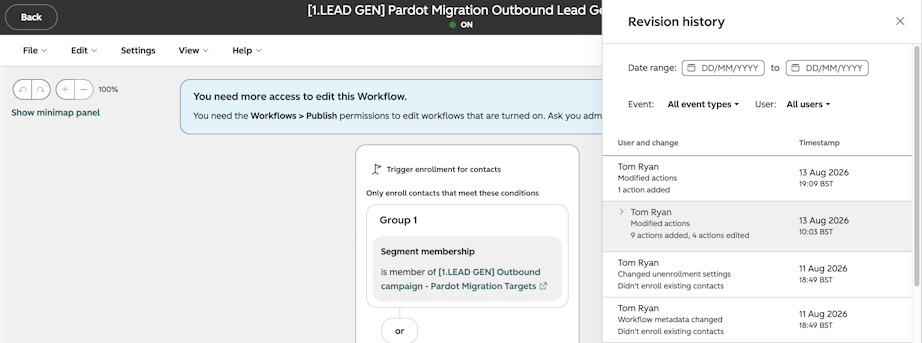
HubSpot's revision history records workflow changes, the time of each change, and the user who made it. You can also inspect earlier versions of the workflow.
Look for changes to:
Enrolment triggers.
Re-enrolment.
Actions.
Branches.
Delays.
Workflow settings.
Imagine a contact failed to enrol on Monday.
On Tuesday, another user noticed that the trigger looked wrong and fixed it without telling anybody.
On Wednesday, you open the workflow and test the affected contact against the current criteria. Everything looks fine.
Without revision history, you could spend a long time trying to explain a problem that no longer exists in the current configuration.
If the workflow was available at the relevant time, establish whether HubSpot considers the affected record eligible.
Use HubSpot's enrolment troubleshooting tools to test the record against the workflow triggers. HubSpot specifically provides this process for records that did not enrol as expected.
Work through the result condition by condition.
When you use AND logic, the record needs to satisfy every relevant condition within that group.
If your workflow says:
Form submission = Demo request
AND
Country = United Kingdom
AND
Company size > 500 employees
a contact who satisfies the first two conditions still does not qualify. They must meet every condition.
OR logic creates the opposite risk because it can make the trigger broader.
If your logic says:
Demo form submitted
OR
Lifecycle stage = MQL
then either condition can make the record eligible.
When teams build more complicated combinations of AND and OR groups, the workflow can behave differently from the rule they thought they had created.
In this case, translate the logic into plain English. If you can’t explain exactly who qualifies in one or two sentences, your workflow may be more complex than it needs to be.
Watch for:
Blank values.
Similar but different dropdown options.
Old property values.
Unexpected formatting.
Data held in another property.
Values that another platform manages.
A user may say, “The account is definitely an enterprise customer”, but the workflow can only use the data that exists in the property you selected.
Make sure you understand which record HubSpot evaluates.
In a contact workflow, you may look at a contact property.
In a deal workflow, HubSpot evaluates the deal unless you explicitly use associated information.
A contact and their associated deal can both contain a field called Region with different values. Looking at the wrong object makes a correctly behaving workflow appear faulty.
If the trigger depends on an event, confirm that HubSpot captured the event you expect.
HubSpot supports event-based enrolment, including events such as form submissions, alongside filter-based enrolment.
Ask:
Did HubSpot actually record the event?
Did the correct form, activity, or event occur?
Did it happen after the workflow became active?
Does the workflow require a specific occurrence?
If the trigger relies on an associated company, deal, or another record, confirm that the association existed when HubSpot evaluated the criteria.
A contact may have the right company attached now because somebody created the association later.
Again, current state does not prove historical eligibility.
This step deserves its own section because timing causes a surprising number of workflow problems.
Consider this example:
10:00 – Contact submits an enterprise demo form.
10:00 – HubSpot records the form submission.
10:03 – An integration updates Lead Type to Enterprise.
Workflow trigger: Demo form submitted AND Lead Type = Enterprise.
When you inspect the contact at 11:00, both conditions look correct.
The question is whether the trigger logic and subsequent data changes allowed HubSpot to enrol the contact, and that depends on how you configured the trigger and re-enrolment behaviour.
For example, a filter-based workflow could enrol the contact at 10:03 when all the conditions become true, but an event trigger may not, depending on whether the contact has already been admitted to the workflow and re-enrolment is enabled.
Property history can tell you:
What the value was.
When it changed.
What caused the change.
Use this information to build a sequence of events. You are looking for the point where the record first satisfied all the conditions HubSpot needed.
If a form supplies some of the required data, confirm that the form populated the expected properties.
Do not assume that because the visitor selected “Enterprise” on the form, the record’s Enterprise property was correctly filled or updated.
If Salesforce or another platform supplies a field used by your trigger, check when the sync occurred. Perhaps HubSpot needs the information before the external system sends it.
Sometimes Workflow A creates the value that should trigger Workflow B, which creates a dependency. When Workflow B fails, the cause may sit in Workflow A.
This is the phrase I use for records that look fine by the time somebody investigates them. By that I mean every field contains the expected value, all the associations exist, and nobody can understand why the workflow failed.
The problem is that HubSpot needed those things several minutes or hours earlier.
Reconstruct the timeline before you change the workflow.
If the record meets the trigger now but did not enrol, check whether HubSpot has seen it in the workflow before.
HubSpot enrols records only the first time they meet the workflow's enrolment criteria by default. If you want a record to enter again, you need the appropriate re-enrolment configuration.
If a record has previously enrolled, re-enrolment needs to be enabled before it can be manually enrolled again.
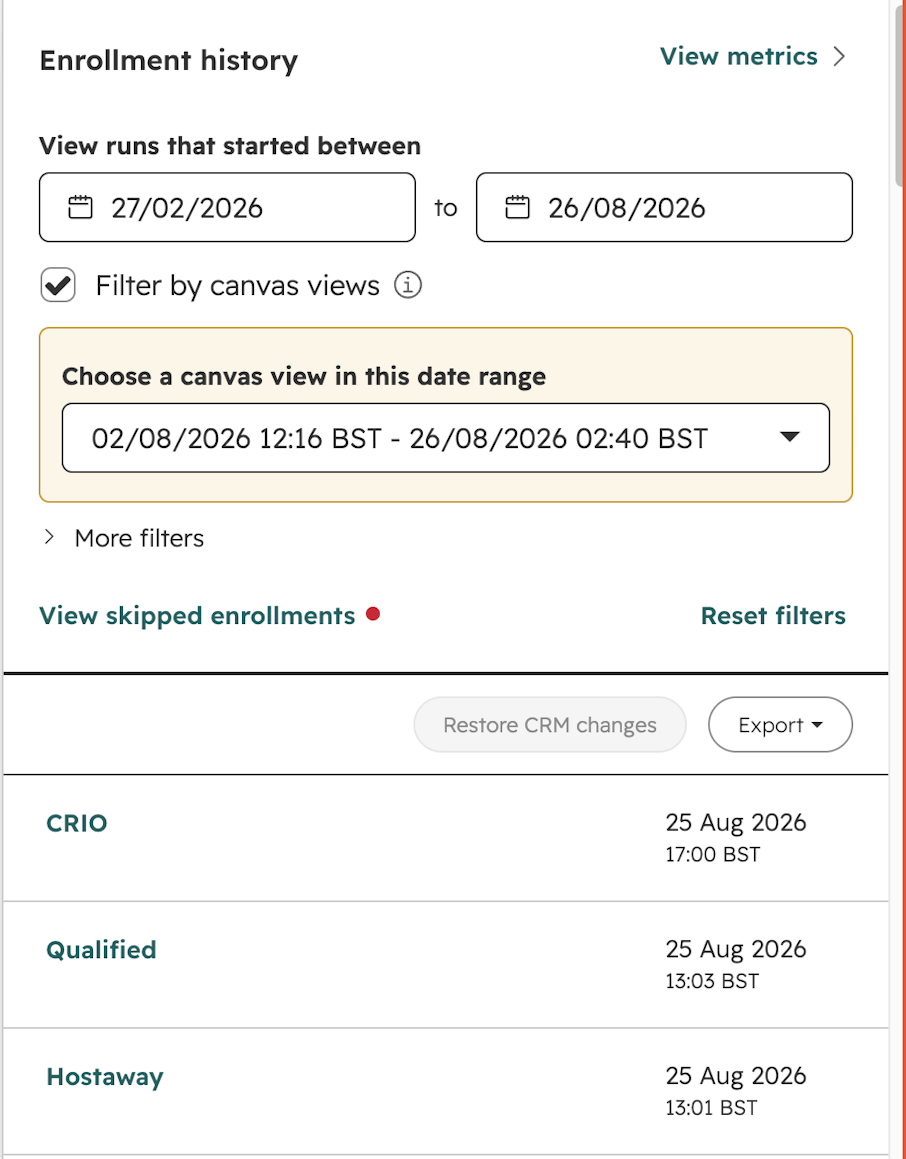
Check its workflow enrolment history.
Do not rely on somebody remembering whether the contact entered six months ago.
The record may have completed the workflow during an earlier campaign, lifecycle stage, or data process.
If the business process expects repeat entry, confirm that the workflow allows it.
Then go one step further.
Turning re-enrolment on does not mean that every original trigger automatically causes a new enrolment.
Review the specific re-enrolment conditions.
HubSpot notes that some enrolment triggers do not support re-enrolment, and the relevant criterion must meet its re-enrolment rules again.
A common example involves a property-based trigger.
Suppose you want a contact to re-enter whenever ‘Status’ becomes ‘Ready’.
If the status remained ‘Ready’ throughout the period in question, the contact may not have created the new qualifying event you expected.
The fact that the field says ‘Ready’ today does not mean it ‘became Ready again’.
Manually enrolling an affected record can tell you whether downstream workflow actions run successfully.
It does not prove that your automated enrolment trigger works.
If you manually enrol a contact and every action completes, you have established that the problem probably sits before or at enrolment.
Merged records create another exception. HubSpot does not automatically enrol merged records based solely on their updated combined state unless you enable the relevant merged-record enrolment setting.
If a strangely behaving contact has a merge in its history, include that in the investigation.
A record can satisfy your main enrolment trigger while another workflow setting prevents it from entering or removes it after enrolment.
For contact-based workflows, look at suppression criteria or segments. If the contact appears there, HubSpot may deliberately keep it out of the workflow.
This may be exactly what you wanted when somebody configured the automation, even if it’s not the case now.
Contact-based workflow goals can automatically remove contacts when they meet the goal criteria.
For example, imagine a nurture workflow whose goal identifies contacts once they become customers.
A contact enters the workflow, reaches Customer through another process, and leaves the nurture early.
Someone reviewing the missing nurture email later may conclude that the workflow failed.
But the workflow may have done exactly what its goal told it to do.
Other workflow types can use unenrolment triggers to prevent records from entering or to remove them after enrolment.
Review:
What makes a record eligible to leave?
When did the affected record meet that condition?
Did another workflow change the property that triggered the removal?
Contact-based workflows can also remove contacts from other workflows when they enrol.
That creates another scenario where the workflow you are investigating looks incorrect because another workflow acted first.
Meeting the enrolment trigger does not always settle the question. Think of enrolment as the first eligibility check rather than the only one.
Once you confirm that the record enrolled, stop troubleshooting the enrolment trigger.
This sounds obvious, but teams often spend time rewriting trigger logic because the final result did not happen, even though HubSpot successfully enrolled the record.
Your investigation now moves into the workflow itself.
Take the same affected record and follow its individual path through the workflow.
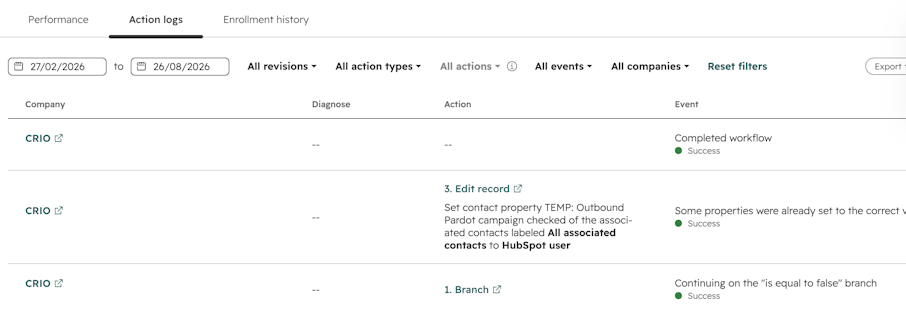
HubSpot's record-level actions logs shows the actions and path for that particular record, including successful actions and actions that produced errors.
You want to find the first point where the actual journey differs from the expected one.
Move to the next relevant action.
Don’t spend time troubleshooting a step where HubSpot shows a successful result unless later evidence gives you a reason to return to it.
Read the available error information and investigate the requirements of that action.
The problem may involve:
Missing data.
An invalid value.
Permissions.
An integration.
A record that no longer qualifies for the requested operation.
A skipped action usually indicates that the record did not meet a requirement at that point, or that HubSpot could not apply the action under the circumstances.
Check the record state at the time rather than its current values.
Check whether the delay has actually ended.
A contact that appears “stuck” until Friday may simply have entered a delay that says “wait until Friday”.
That sounds basic, but long workflows become difficult to read at a glance, especially when they include multiple delays and branches.
Suppose Sales never receives an internal notification. It feels natural to investigate the notification action.
The actual path may look like this:
Enrolment → Delay → If/then branch → Update lead status → Notify owner
If the record took the wrong branch, it never reached the notification.
The notification itself has no problem.
Follow the path from the beginning until you find the first difference.
HubSpot supports several delay types, including fixed amounts of time and delays based on days, dates, or events.
Confirm:
When the record entered the delay.
What condition releases it.
Whether HubSpot still waits for that condition.
What should happen after the delay.
A workflow may restrict when actions can run.
If the action reaches the queue outside the permitted window, HubSpot can wait for the next available time rather than running it immediately.
If a UK marketing manager expects something to happen at 09:00 but the HubSpot portal uses another timezone, the difference can look like a delay or failure.
This becomes particularly important in global organisations where:
The HubSpot portal uses one timezone.
Marketing operates from another.
Sales teams work across several regions.
A workflow contains date or time-sensitive actions.
Do not interpret timestamps until you know which timezone applies.
Imagine the workflow follows this sequence:
Monday 09:00
Contact enrols.
Two-day delay
Wednesday 09:00
Delay ends.
Workflow only runs selected actions between 10:00 and 17:00
Wednesday 10:00
Workflow continues.
Branch evaluates Region
Wednesday 10:01
Notification goes to the regional sales team.
If somebody expected the notification at 09:00 on Wednesday, the one-hour difference can look like a workflow problem even though the automation followed its timing settings.
Teams sometimes edit a delay while records are already active inside the workflow.
When you investigate historical behaviour, check the relevant workflow version and record timeline rather than assuming the current timing explains earlier movement.
Branches often create confusion because the record you see today may no longer contain the value HubSpot used when it chose a path.
Start with the record's actual workflow history and identify the branch it followed. Then ask why HubSpot selected that branch.
If the branch says:
If Country = United Kingdom → UK team
Otherwise → Global team
and HubSpot sent a contact to Global, find out what Country contained when the record reached the branch.
If an integration populated United Kingdom ten minutes later, the current record will mislead you.
Review every path, including the default or “none met” route.
When several conditions look similar, make sure the workflow reflects the intended priority.
A branch may evaluate an associated company or deal property rather than the primary record.
Make sure you inspect the data HubSpot used.
Some behavioural information may need time to process before another part of HubSpot can use it reliably.
If a branch depends on recent activity, include data availability in the timeline rather than assuming every system updates at the same moment.
Two contacts can have the same current lifecycle stage, region, company, and lead score while taking different workflow paths because their histories may differ.
One received the required value before the branch.
The other received it afterwards.
Remember that current CRM values tell you what the records look like now, but workflow history tells you what happened.
Associations kick in whenever a workflow needs data from or takes action on another record.
This commonly affects:
Deal workflows.
Company workflows.
Ticket workflows.
Custom-object workflows.
Contact workflows that use associated company or deal properties.
Suppose a contact enters a workflow at 11:00.
The workflow should update their associated deal five minutes later, at 11:05.
But Sales creates the deal at 11:20.
When you investigate at 14:00, the contact has a perfectly valid deal association.
At 11:05, it did not.
Some contacts have several deals.
Some companies have several associated contacts, tickets, or custom records.
If your logic assumes a single associated record, check whether the real CRM structure matches that assumption.
Establish when somebody or something created the association. Potential sources include:
Manual CRM updates.
Form automation.
Another workflow.
Salesforce.
An integration.
An import.
Again, look for the timing of these associations. More often than not, this is the issue.
In complex portals, Workflow A may create an association that Workflow B expects to use.
If Workflow B gets there first, its own configuration may be perfectly sound, but there’s a problem in the order of operations, and this is what you need to address.
This is where the investigation often becomes more interesting, especially if you’re a HubSpot nerd like me!
Let’s say HubSpot shows your workflow completed the action successfully.
But your example record still contains the wrong value.
At this point, we need to ask a different question:
What happened after the workflow completed?
Take the property you expected the workflow to control and review its history.
You may find a sequence like this:
09:15 – Workflow changes Lead Status to Qualified
09:16 – Salesforce sync changes Lead Status to Open
By 09:30, somebody opens the contact and concludes that the HubSpot workflow failed.
It did not.
The workflow successfully applied Qualified. Something else changed it afterwards.
Use this table to narrow down the source.
|
The aim is to identify the last meaningful change before the value became wrong.
If one user repeatedly overrides the field, you may have a process problem.
If Salesforce repeatedly changes it a minute after HubSpot, you probably need to review data ownership and sync settings.
If several workflows take turns updating a single field, the issue sits in your automation design.
As HubSpot portals grow, teams create new workflows to solve new requirements.
A lead nurture workflow needs to update Lead Status.
A sales handover workflow also updates Lead Status.
A re-engagement workflow changes it again.
A Salesforce sync adds another source of changes.
Together, they can make the property difficult to trust.
Identify workflows that:
Use the property as an enrolment trigger.
Update the property.
Branch according to the property.
Use it for re-enrolment.
Trigger downstream automation when it changes.
You are trying to understand the property as part of a system rather than looking only at the workflow in front of you.
Two workflows may both run after the same form submission.
Which one acts first?
Does one update a value that changes the other's behaviour?
Can one workflow trigger another?
Mature HubSpot portals often contain workflows created for campaigns or processes that nobody uses anymore. If they remain active, they can still affect records.
This is one reason regular workflow reviews are important. Old automation continues to run long after the business has forgotten why it exists, and it’s buried among dozens of other workflows.
You can inspect Workflow A and find no error.
You can inspect Workflow B and find no error.
The problem only appears when both workflows act on the same record. This is when troubleshooting requires more than a workflow review. You’re moving into portal architecture.
If property history points outside HubSpot, follow it. Salesforce is a common example because marketing and sales teams often expect both platforms to maintain shared information.
The same principle applies to:
Data sync tools.
Native app integrations.
Middleware.
APIs.
Custom applications.
Data warehouses or enrichment platforms that write back to HubSpot.
This question resolves a lot of recurring sync problems.
If both HubSpot and Salesforce can independently decide what Lead Status should contain, disagreements will continue.
You need a clear answer to:
“Which system has authority over this property, and under what circumstances may another system change it?”
For some fields, HubSpot should lead. For others, Salesforce should lead. Some need carefully controlled two-way updates.
The correct system depends on the business process, but the ownership needs to be decided and configured intentionally.
Imagine this sequence:
10:00 – Contact reaches the qualification workflow.
10:01 – HubSpot changes Lifecycle stage and Lead Status.
10:02 – Workflow completes successfully.
10:03 – Salesforce sends an older status back to HubSpot.
10:05 – Marketing checks the contact and sees the old value.
From the marketing team's perspective, “the workflow isn't updating Lead Status”.
From the workflow's perspective, it completed successfully.
The true problem is in the connected data process.
If you keep fixing the same HubSpot workflow only for the data to change again, stop making workflow changes. The evidence has already told you to look elsewhere.
Revision history is especially useful when a problem begins suddenly.
HubSpot's workflow revision history shows what users changed, when they changed it, and who made each change. Compare the first occurrence of the problem with the workflow timeline.
Enrolment logic.
Actions.
Branch order.
Delays.
Suppression.
Re-enrolment.
Workflow settings.
If ten contacts behaved correctly on Monday and every contact behaved incorrectly after a Tuesday afternoon edit, you have a strong place to start.
Revision history gives you correlation and evidence, but you still need to understand what the change did.
Avoid the rather uncomfortable meeting where somebody gets blamed because their name appears in the history, only to discover that their edit had nothing to do with the affected logic.
Use the history to reconstruct the workflow, not to allocate blame.
These are the situations we would keep in mind when the obvious checks do not explain the problem.
What you see:
The affected record currently meets every workflow condition.
What's probably happening:
One or more values changed after HubSpot evaluated the record.
Where to investigate:
Property history, integration timing, form submissions, and upstream workflows.
What you see:
The record meets the criteria but does not enrol again.
What's probably happening:
HubSpot already enrolled it previously, and your re-enrolment configuration does not allow another entry.
Where to investigate:
Enrolment history and re-enrolment settings.
What you see:
The workflow clearly allows re-enrolment, but a repeat action does nothing.
What's probably happening:
The event or criterion you expect to cause the new enrolment does not qualify under the re-enrolment setup.
Where to investigate:
The individual re-enrolment conditions. HubSpot requires you to configure the criteria that should allow records to enter again.
What you see:
A contact submitted the right form and contains the right data, but never entered.
What's probably happening:
The contact met the condition before the workflow could respond to it.
Where to investigate:
Workflow activation time, event history, and enrolment settings.
What you see:
The record goes through the workflow correctly during your test.
What's probably happening:
The actions work, but you have bypassed the automated trigger that originally failed.
Where to investigate:
Return to enrolment logic rather than treating the manual test as proof that the whole workflow works.
What you see:
The contact now has the correct deal or company, but an associated-record action failed earlier.
What's probably happening:
HubSpot had no relevant associated record when the action ran.
Where to investigate:
Association history and record creation timing.
What you see:
The workflow looks as if it has stopped.
What's probably happening:
HubSpot still waits for a configured time, date, or event.
Where to investigate:
The record's path and the delay configuration. HubSpot supports several workflow delay types.
What you see:
An action runs earlier or later than the team's expected time.
What's probably happening:
The workflow follows the portal's configured timing rather than the timezone somebody used when interpreting the event.
Where to investigate:
Portal and workflow timing settings.
What you see:
The contact enters but leaves before the remaining actions.
What's probably happening:
It reached the workflow goal.
Where to investigate:
Contact-based workflow goal criteria. HubSpot automatically unenrols contacts that meet a workflow goal.
What you see:
A record appears eligible but never enters, or leaves unexpectedly.
What's probably happening:
Another eligibility rule tells HubSpot to exclude or remove it.
Where to investigate:
Suppression and unenrolment settings.
What you see:
Action history shows success, but the property contains another value.
What's probably happening:
A second workflow updated it later.
Where to investigate:
Property history and other workflows that reference the field.
What you see:
A workflow applies the correct value, and it changes again soon afterwards.
What's probably happening:
A connected platform controls or updates the field.
Where to investigate:
Property history, integration mappings, and data ownership.
What you see:
Large groups of records suddenly contain unexpected data.
What's probably happening:
A bulk import updated existing properties.
Where to investigate:
Import history and property history.
What you see:
Automation appears inconsistent for individual records.
What's probably happening:
A user updated the value after the workflow completed.
Where to investigate:
Property history and internal process.
What you see:
You can’t reproduce the original behaviour using the current workflow.
What's probably happening:
Someone edited the workflow after the affected record went through it.
Where to investigate:
Workflow revision history.
What you see:
A record appears to have gone down an obviously incorrect route.
What's probably happening:
The branch evaluated a different property value at that point in time.
Where to investigate:
Property history and the individual workflow path.
What you see:
One contact works and another does not, despite matching current data.
What's probably happening:
The order of events differs between them.
Where to investigate:
Compare the timelines side by side.
What you see:
A merged contact meets the trigger but does not behave like similar records.
What's probably happening:
Merged-record enrolment rules affect whether HubSpot automatically enrols the resulting record.
Where to investigate:
Record merge history and workflow enrolment settings.
Once you think you have found the cause of your HubSpot workflow woes, prove it.
But proceed with caution. Avoid testing a theory by changing several things in the live workflow.
First, run a controlled test.
Before changing anything, capture:
The trigger.
Relevant workflow settings.
The affected action or branch.
Important property values.
The current workflow version.
This gives you a reference if the test produces an unexpected result.
Use a record you can safely manipulate without triggering unwanted sales, customer, or reporting activity.
Ideally, the test record should reproduce the important characteristics of the affected record.
For higher-risk automation, a cloned workflow can give you a safer environment to test logic without exposing live contacts to the change.
This becomes particularly important when the workflow:
Sends external communications.
Changes lifecycle stages.
Updates revenue-related data.
Assigns leads.
Interacts with Salesforce.
Enrols large numbers of records.
If you believe the enrolment trigger causes the problem, change the trigger.
Then test.
Do not also remove the delay, rebuild the branch, and remap three properties.
One change at a time gives you a clear result.
Recreate the event as closely as possible.
If the original problem followed a form submission, test the form process.
If a property change should trigger the workflow, create that change.
If another workflow supplies the data, include that dependency where practical.
Watch the record move through the workflow.
Check:
Enrolment.
Action history.
Branch.
Delays.
Property updates.
Associations.
Don’t stop when the immediate workflow action succeeds. Ask what the action should influence next.
For example:
Did the salesperson receive the notification?
Did the lifecycle stage change?
Did Salesforce receive the new value?
Did another workflow enrol the record?
Did reporting update?
Did the record stay correct afterwards?
The first workflow can work while the wider process still fails.
If the test disproves your theory, return to the evidence and change the next most likely variable.
This takes slightly longer than making several speculative changes, but it gives you a much better chance of finding the real cause.
Once the controlled test consistently produces the expected outcome, apply the necessary change to the live workflow and monitor the next real records.
Keep the change as narrow as possible.
You can’t eliminate every workflow issue, particularly when HubSpot connects with several platforms and teams, but you can make problems less frequent and much easier to investigate.
HubSpot supports highly detailed trigger logic, but complexity has a cost. Every additional AND/OR group, associated-object condition, and dependency gives you another place to investigate later.
If the business process needs complexity, use it.
If you can express the same rule more simply, take the simpler option.
For business-critical automation, record:
Workflow owner.
Purpose.
Primary trigger.
Important exclusions.
Properties the workflow controls.
Connected systems.
Downstream workflows.
Who to speak to before making major changes.
A short record summarising what the automation does and what it affects can save a lot of investigation later.
Pay particular attention to fields such as:
Lifecycle stage.
Lead status.
Contact owner.
Lead score.
Qualification indicators.
Salesforce-synchronised properties.
Revenue-related fields.
For each one, decide which system or process has authority to change it.
If five workflows, Salesforce, and three users can all independently update the same field, the property will eventually cause issues.
Before changing a widely used property, establish where else HubSpot uses it.
A small edit to a dropdown option can affect:
Workflow enrolment.
Branches.
Segments.
Reports.
Lead scoring.
Integrations.
The more central the property, the more carefully you should treat changes.
A useful workflow name should tell another HubSpot user enough to understand what it does.
For example:
MKT | MQL handover | Demo request | Active
Is more helpful than:
New workflow 27 FINAL v2
Naming conventions are so valuable when you need to find overlapping or legacy automation.
If a workflow no longer supports a live process, decide whether you still need it.
Old workflows make audits and troubleshooting harder because every historic piece of automation becomes another possible source of a property update or record movement.
HubSpot keeps workflow history and revision information, so you do not need to keep unnecessary live automation simply because you may want to understand the past later.
Bear in mind that deleted workflows can only be recovered for 90 days.
Don’t wait for sales to report a missing lead before you check business-critical automation.
For important workflows, monitor:
Enrolment volume.
Errors.
Unexpected drops or spikes.
Repeated skipped actions.
Integration failures.
HubSpot can support workflow performance notifications and can flag unusual changes to enrolment rates in eligible accounts.
A change needs more care when the workflow affects:
Customer communications.
Lead routing.
Lifecycle stages.
Sales handover.
Salesforce.
Revenue data.
Large audiences.
The cost of rigorous testing is lower than the cost of discovering the error after hundreds of records have gone through the workflow and your prospects are getting the wrong comms.
I’ll be the first to say that you don’t need specialist support every time a record misses a workflow.
If one contact failed because a straightforward property value did not match the trigger, your internal team can probably identify the cause and move on.
Outside support is most useful when you can’t isolate the problem to one setting or process.
Consider bringing in a HubSpot technical specialist when:
The same problem keeps returning.
Some records fail while apparently similar records work.
You cannot reproduce the issue consistently.
Several workflows control the same property.
Fixing one workflow creates another problem.
HubSpot and Salesforce repeatedly show different values.
Integrations, APIs, or custom code form part of the process.
Nobody can clearly explain which system owns important data.
The problem affects lead routing or sales handover.
The issue undermines lifecycle or attribution reporting.
The portal contains a large amount of inherited automation.
Several agencies, internal teams, or consultants have changed the setup over time.
You can’t safely test the suspected fix in the live workflow.
Sometimes we investigate an enrolment problem and find a small issue in the trigger. The team fixes it, tests it, and carries on.
In other cases, the workflow only exposes a wider problem. Another automation controls the same property, Salesforce overwrites the result, or the workflow expects data that arrives from an integration several minutes later.
Making another change to the enrolment criteria will not solve those problems, and it’s when you want HubSpot experts in your corner to handle the heavy technical lifting.
If you have worked through the process in this playbook and still can’t explain why your workflow behaves as it does, the issue may sit beyond the individual enrolment trigger.
As part of a HubSpot audit, MarCloud's consultants troubleshoot workflow logic, enrolment, CRM data, Salesforce, and other integrations, helping teams establish where problems start and what needs to change.
We can also review the wider automation setup when conflicting workflows, inherited processes, or unclear data ownership make individual issues difficult to isolate.
Founder & CEO of MarCloud, Tom has been on both sides of the fence, client-side and agency, working with Salesforce platforms for the best part of a decade. He's a Salesforce Marketing Champion and certified consultant who loves to co-host webinars and pen original guides and articles. A regular contributor to online business and marketing publications, he's passionate about marketing automation and, along with the team, is rapidly making MarCloud the go-to place for Marketing Cloud and Salesforce expertise. He unapologetically uses the terms Pardot, Account Engagement and MCAE interchangeably.
More by Tom Ryan